Manage or Create a User/Account (Assigning a co-signer, provider signature, complete notes, etc)
When you first log into your new system, you will have a single Admin User, which those credentials should have been sent to you in your initial Welcome email. This article will show you where to navigate to change the Admin user's information and settings, as well as add all of your employees as new users, and how to set them up. If you need any assistance, please don't hesitate to reach out to our support team at 305-394-6197 (opt. 3).
Managing Accounts: Where to go?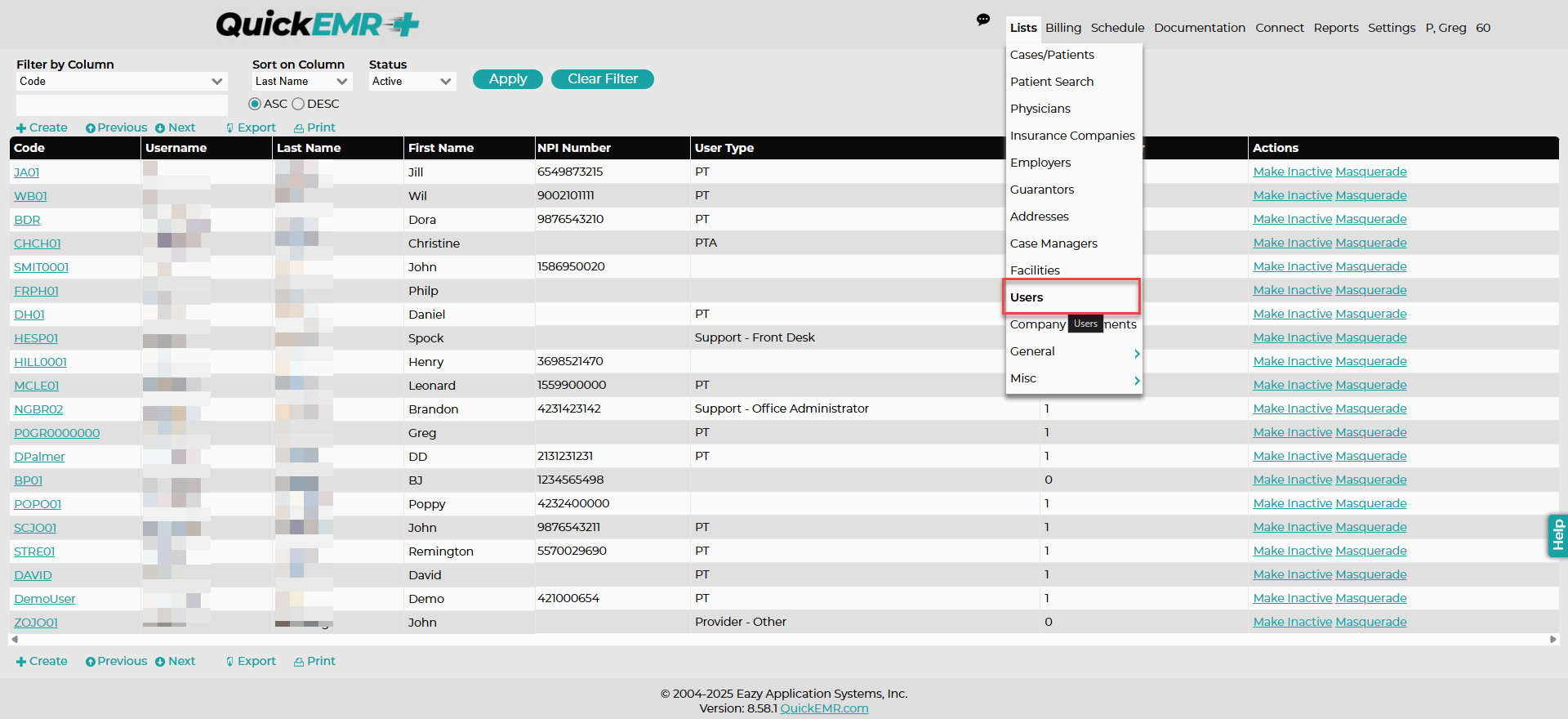
1. Managing User's profiles can be found under List->Users
2. Once under the list of users, Click Create or Make Inactive to remove
*use the search bar or click on the code to edit an existing Account
Account Information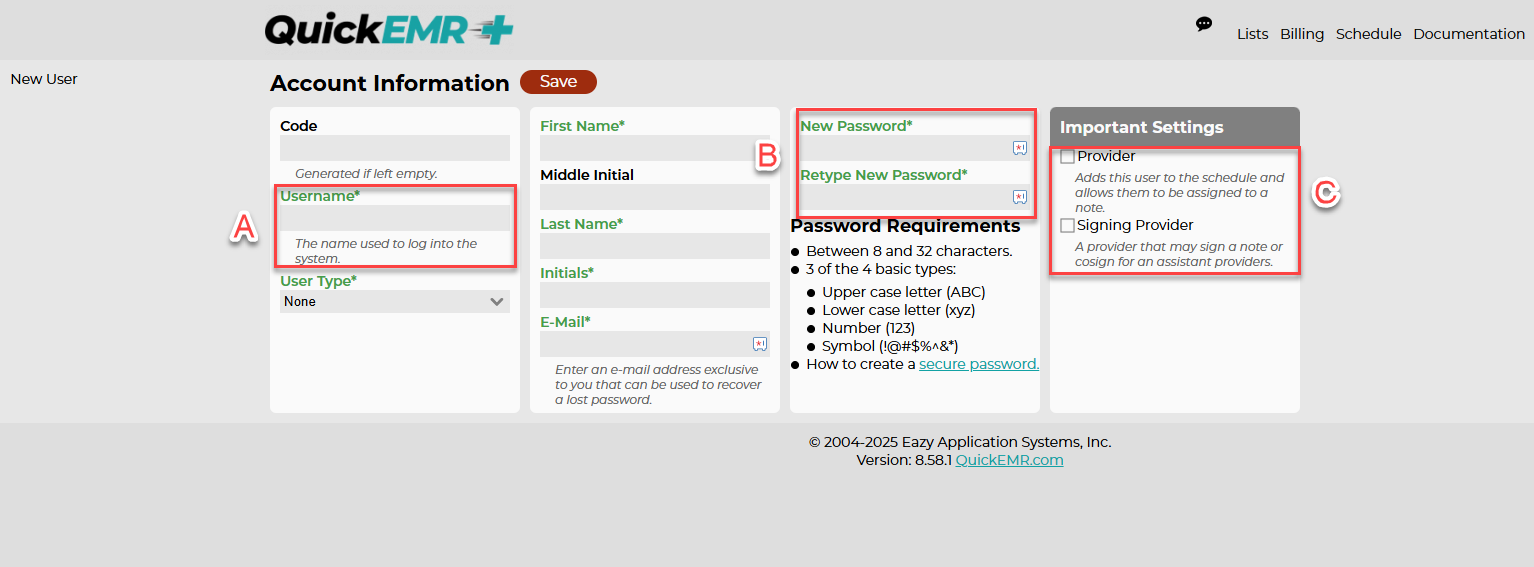
A. The username is used to sign into your QuickEMR
B. If the password is forgotten, accounts that are assigned as a Super User or have the necessary permissions can edit or change the password without knowing the existing password
C. If the user is a provider, check mark the necessary box under "Important Settings"
Reset Password
Upon the users first time logging into the system, they will be prompted to reset their password to something that only they know.
Account Settings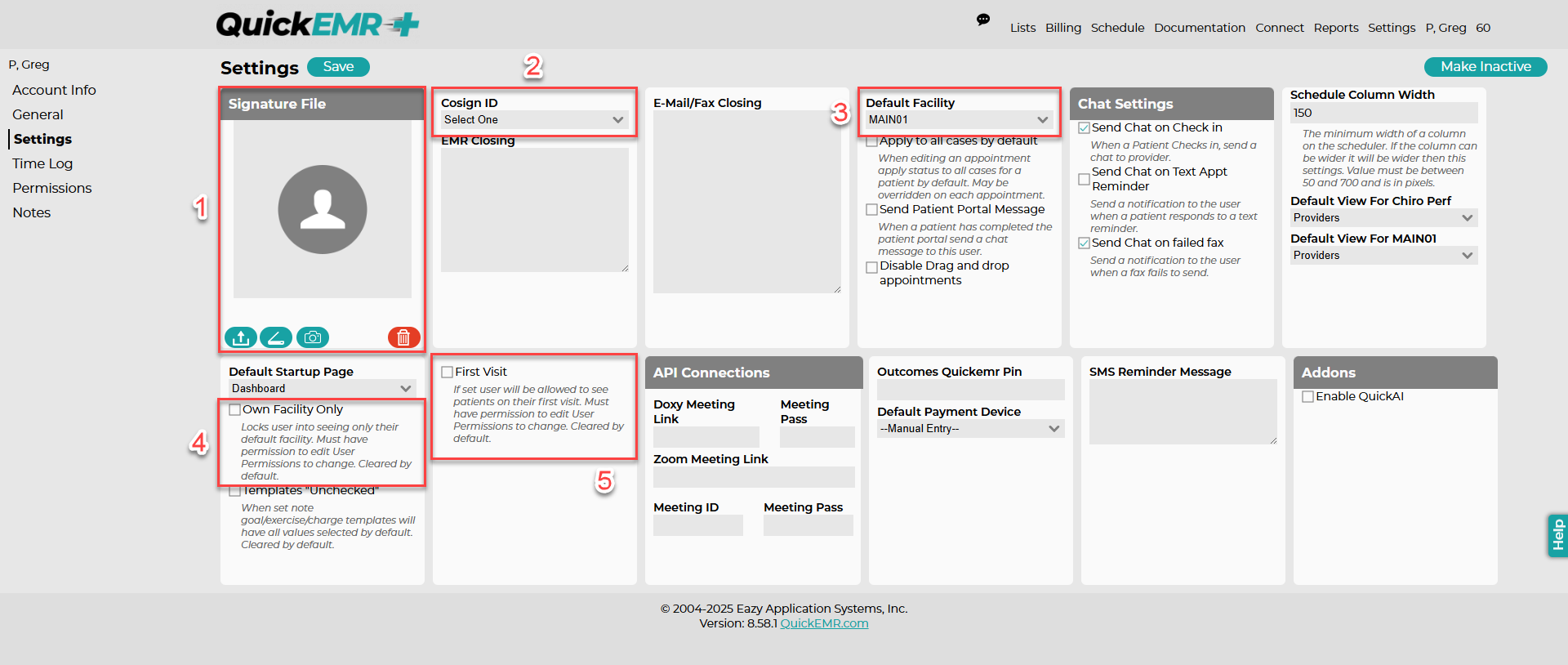
1. Users can upload a signature to display on the provider's notes.
The file format of the signature must be in JPEG or PNG and cropped accordingly.
Best Method:
1. Write a signature on a blank sheet of paper
2. Scan the signature as a PNG or JPEG into your computer.
3.Crop the photo and upload into QEMR
2. Ability to assign a Cosigner to this account that will auto populate on notes
*This is handy for accounts that are designated as a Therapist Assistant
3. Upon signing into Qemr the user will be defaulted to the assigned facility
4. If there is more than 1 facility within your database, this setting will allow users to lock the account in the defaulted facility.
5. Allows the therapist to see patients on their first visit.
Permissions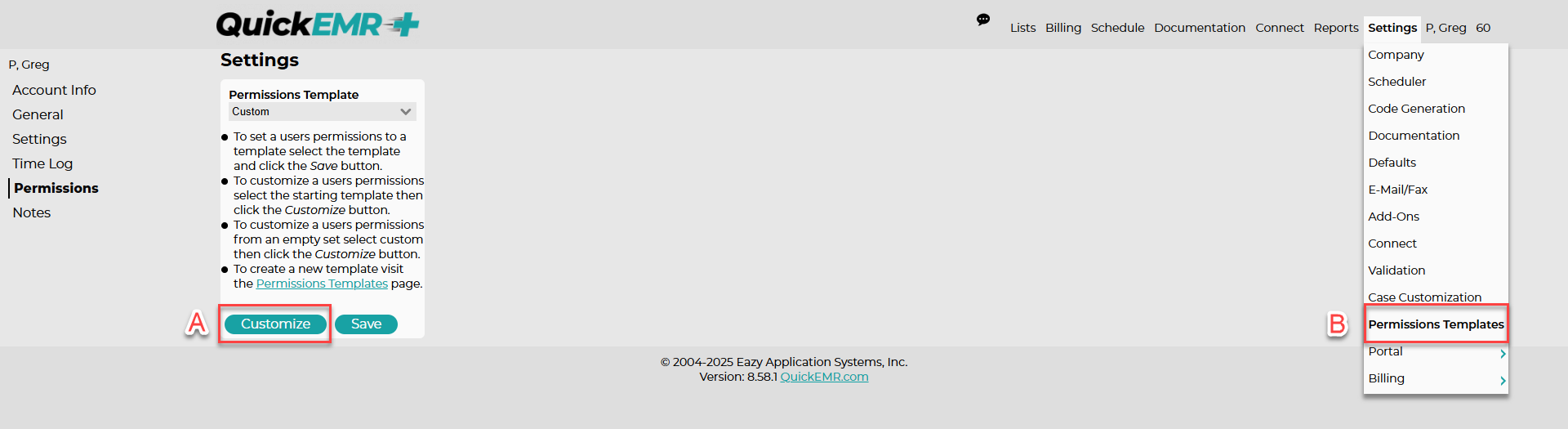
The permissions determine what the account is able to access within qemr
A. Users are able to adjust each account's permissions individually
OR
B. Create a Permissions Template for each position within the company and then assign that template to each user
OR
B. Create a Permissions Template for each position within the company and then assign that template to each user
Video Guide
Related Articles
User Permissions
Addresses, Address Notes, Address Groups: The Address permissions control the users ability to view, edit, delete, and print/export address information that is found at Lists --> Addresses and address groups found at List --> Misc --> Address Groups. ...QuickEMR System Initial Set Up
Welcome to QuickEMR! When you first log in to QuickEMR, your system starts as a clean, blank slate. This allows you full control over how your system is configured from the beginning. You’ll need to enter your practice’s core information—such as ...Manage or Create a Schedule Template
Before creating a template, a Facility and at least 1 Therapist will need to be added. After creating your template, visit our Schedule Article for additional help The purpose of the Template is to create a outline for the schedule that reoccurs ...Manage or Create a Insurance
*A insurance must be created in the system before adding the insurance to the patient's chart. Patient's Chart: Creating a New Insurance: Where to go? 1. Users may manage their insurances under List->Insurance Companies. 2. Once under Insurance ...Billing Provider
Introduction In healthcare, medical billing serves as a crucial process that ensures the financial health of medical practices and facilitates smooth transactions between patients, healthcare providers, and insurance companies. One key component in ...